
Modern websites rely heavily on video to communicate information, demonstrate products, share tutorials, and create engaging digital experiences. Although MP4 is one of the most commonly used video formats, WEBM has become an important option for online video because it was developed with web-based playback in mind. When a project requires a different format, an MP4 to WEBM Converter can provide a convenient way to transform an existing video without requiring advanced editing knowledge.
Understanding MP4 and WEBM
MP4 and WEBM are both video formats, but they were developed with somewhat different priorities.
MP4 is widely recognized because it works with a broad range of devices, operating systems, media players, editing programs, and online platforms. It is commonly used for everything from smartphone recordings to professional video production.
WEBM, on the other hand, was developed specifically for efficient multimedia delivery on the web. It is frequently associated with HTML5 video and modern browser-based applications.
This difference makes WEBM particularly interesting for website owners, developers, and content creators who need video assets optimized for online environments.
Why Is MP4 to WEBM Conversion Useful?
There are many situations where an existing MP4 video may need to be converted into WEBM.
A website developer might receive promotional videos in MP4 format but require WEBM versions for a web project. A content creator could have a collection of videos that need to be prepared for a particular application. Similarly, someone working on an interactive website may want to provide multiple video formats for different playback environments.
Converting the file rather than recreating the video saves time and allows the original content to remain unchanged while producing an additional format for a specific purpose.
Designed for Web Video
WEBM is closely connected with browser-based video. This makes it a useful format for websites where video playback is part of the user experience.
For example, WEBM can be used for:
Website video backgrounds
HTML5 video players
Product demonstrations
Online tutorials
Interactive web applications
Short promotional clips
Animated website elements
Digital presentations
The exact compatibility of any video depends on the browser, device, codec, and implementation being used.
How an MP4 to WEBM Converter Works
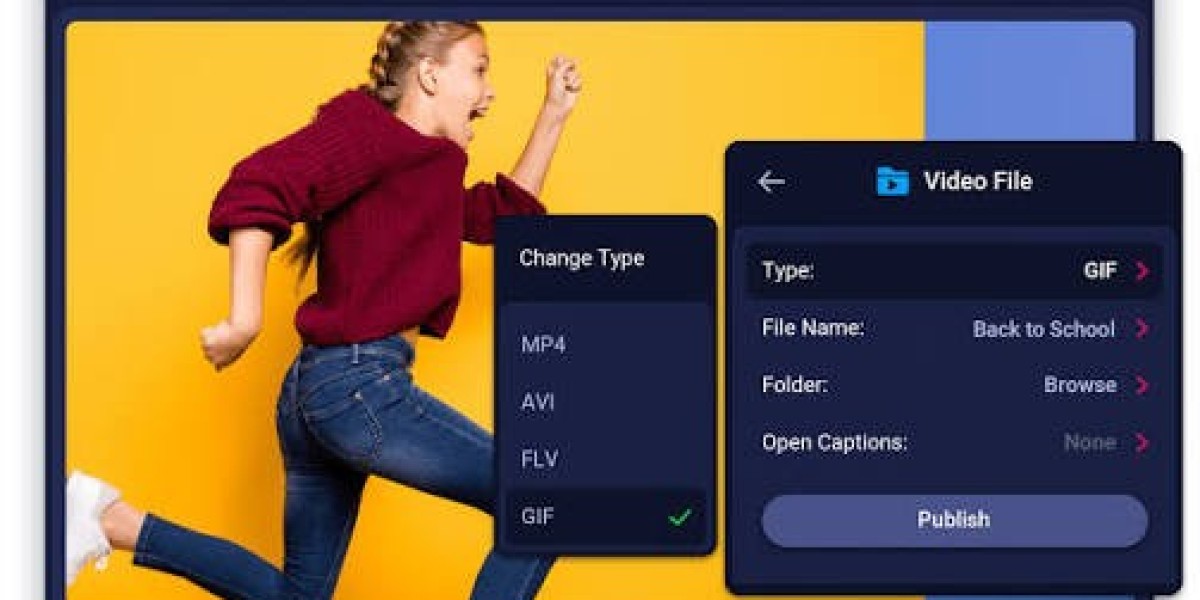
An online converter generally follows a simple workflow. The user uploads an MP4 file, selects WEBM as the output format, and starts the conversion process.
Behind the scenes, the video is processed and encoded into a WEBM-compatible container. The resulting file can then be downloaded and used in the intended application.
For people who only occasionally need to convert videos, this approach can be easier than learning professional encoding software.
A typical workflow looks like this:
Choose the MP4 video from your computer or device.
Upload the video to the converter.
Select WEBM as the output format.
Start the conversion.
Wait for the processing to finish.
Download the converted WEBM file.
Open and test the video before using it.
The processing time can vary according to the file size, video length, resolution, encoding settings, and available server resources.
Benefits of Converting Videos Online
Online conversion tools can be particularly useful for users who want a quick solution.
No Complex Installation
Dedicated video software can be powerful, but it may require installation and configuration. Online converters work through a browser, making them accessible from computers and other compatible devices.
Simple Workflow
Most conversion tools are designed around a small number of steps. This can make them suitable for users who are not familiar with technical video encoding terminology.
Convenient for Occasional Projects
If you only need to convert a few videos, installing professional video software may not be necessary. A browser-based solution can be more practical for straightforward format conversion.
Useful Across Different Devices
Because the conversion process can take place online, users may be able to access it from different computers or operating systems without installing the same software repeatedly.
Factors That Affect the Converted Video
Changing a video format is not simply about changing the file extension. The encoding process determines how the final video looks, sounds, and performs.
Several technical factors deserve attention.
Video Resolution
Resolution refers to the dimensions of a video. A high-resolution video contains more visual information than a low-resolution version.
If you are converting a video for a website, there may be little benefit in maintaining an unnecessarily high resolution when the video will only appear in a small player.
For example, a large 4K source may not need to remain 4K when it is being displayed in a relatively small area of a webpage.
Bitrate
Bitrate describes how much data is used to represent video over time. Higher bitrates can preserve more detail but generally create larger files.
Lower bitrates can reduce file size but may cause visible compression artifacts if pushed too far.
The best setting depends on the video's content. Fast-moving footage, detailed scenes, and screen recordings may require different settings from simple talking-head footage.
Frame Rate
Frame rate represents the number of frames displayed per second.
Common frame rates include 24, 30, and 60 frames per second. Maintaining the source frame rate can be a sensible choice when there is no reason to change it.
Reducing frame rate can sometimes help reduce file size, but it may also affect the smoothness of movement.
Audio Settings
Video conversion can also affect audio. If the WEBM file contains audio, the selected audio codec and bitrate influence both quality and file size.
For videos used as silent background elements, audio may not be necessary at all. Removing an unnecessary audio track can help reduce the overall file size.
WEBM and Website Performance
Website performance is increasingly important for businesses, publishers, developers, and content creators.
Video files can be significantly larger than ordinary website assets, meaning they require more bandwidth and processing resources. Proper video optimization can therefore contribute to a more efficient website.
Converting an MP4 file to WEBM may help in certain situations, but it should be considered alongside other optimization techniques.
Website owners can also consider:
Compressing videos appropriately
Using suitable video dimensions
Avoiding unnecessarily long background videos
Loading videos only when needed
Using modern caching strategies
Selecting appropriate hosting
Removing unnecessary audio
Providing alternative formats where appropriate
The goal is not simply to make a video as small as possible. Instead, the objective is to find a practical balance between visual quality and efficient delivery.
When Should You Keep the Original MP4?
Even when you convert a video to WEBM, it is a good idea to retain the original source file.
The original MP4 may be useful later if you need to create another version. For example, you may eventually need a different resolution, another format, or a version optimized for a different platform.
Repeatedly converting an already compressed video can potentially reduce quality. Keeping the original source gives you a better starting point for future conversions.
It is also helpful to use descriptive filenames and organized folders when managing multiple video versions. This prevents confusion between original footage, edited files, and converted copies.
Common Problems During MP4 to WEBM Conversion
Although conversion is generally straightforward, users can encounter a few issues.
Large Uploads
Large video files may take longer to upload and process. A stable internet connection is useful when working with large files through an online service.
Quality Loss
If the output quality appears noticeably worse than the source, the encoding settings may be too aggressive. A higher bitrate or different quality setting may improve the result.
Audio Problems
Occasionally, audio may not behave as expected after conversion. Testing the entire file before publishing can help identify synchronization or compatibility problems.
Playback Compatibility
Not every browser or application handles every codec combination in exactly the same way. If compatibility is important, test the WEBM file in the environments where it will actually be used.
Practical Uses for Converted WEBM Files
WEBM can be helpful in many digital projects.
Website Backgrounds
Short looping background videos can add visual interest to landing pages and promotional websites. Since these videos may play automatically and repeatedly, keeping the file efficient is important.
Tutorials
Educational websites can use WEBM videos for demonstrations, walkthroughs, and instructional content.
Web Applications
Interactive applications may use video as part of their interface. WEBM can be one of the formats considered when developing browser-based experiences.
Product Pages
Online stores and product websites may use short video demonstrations to show products from different angles or explain how they work.
Digital Portfolios
Designers, developers, photographers, and other creative professionals can use video to showcase projects on portfolio websites.
Tips for Choosing the Right Conversion Settings
Before converting a video, identify its final purpose. A video intended for a large desktop player may require different settings from a small website animation.
Consider the following questions:
Where will the video be displayed?
What resolution is actually required?
Does the video need audio?
Is a small file size important?
Which browsers or applications need to support it?
Does the project have a maximum file-size requirement?
Answering these questions first can help you choose more appropriate conversion settings.
It is also wise to preview the converted file before replacing the original. Check the opening and closing sections, fast-moving scenes, dialogue, and audio synchronization. A complete review can prevent problems after publication.
Frequently Asked Questions
What is an MP4 to WEBM converter?
An MP4 to WEBM converter is a tool that processes an MP4 video and creates a WEBM version of that video. Online converters can perform the process through a web browser.
Why would someone convert MP4 to WEBM?
The conversion can be useful when a website, web application, or digital project requires or benefits from WEBM video. WEBM is designed with web-based multimedia delivery in mind.
Will converting MP4 to WEBM make the file smaller?
It can, but there is no guarantee. The final file size depends on the codec, bitrate, resolution, frame rate, and other encoding settings.
Can I convert a long MP4 video to WEBM?
Yes, although longer and larger videos generally require more upload and processing time. Available file-size limits can also vary between conversion services.
Is WEBM good for websites?
WEBM is commonly used for web video and can be suitable for HTML5-based websites. Developers should test their implementation against the browsers and devices they intend to support.
Should I delete my MP4 after conversion?
It is generally better to keep the original MP4, particularly if it is the highest-quality source available. It can be useful for future conversions or editing projects.
Conclusion
MP4 remains one of the most versatile video formats available, but different digital projects have different technical requirements. WEBM offers another option for web-focused video workflows and can be useful for websites, online applications, tutorials, product demonstrations, and interactive content.
An MP4 to WEBM conversion does not have to be complicated. With an online converter, users can process their videos without needing advanced encoding knowledge or specialized desktop software. The most important considerations are the intended use, output quality, file size, resolution, bitrate, and compatibility.
By selecting appropriate settings and testing the final video before publishing, content